Send a case to a learner by assign a task todo

In KLMS a learner in a school or a company can take a course and learn by the video content and PDF, PowerPoints, or text material. No teacher will approve the course. After the course parts (lessons or chapters) are taken; the course is ending with a final test or not depending on the author of the course has created a test.
In the event, a teacher will be an active part and review the work done by the learner (also called Academy User = AU) you will use the concept of Case in KLMS.
So if the problem is: Teacher wants to give a student homework, a task or assign something he or she wants to evaluate before accepting and have a communication in-between the student and the trainer in the meantime to guide the student in the learning process: The Case is the vital part of KLMS to do this.
It's basically a very simple process. Creating a case is very easy. Just like creating a message in its simplest form.
1. Go to MessageBoard in the upper right

2. Create a New "Case" in the upper right plus sign.

3. Choose a case in the 2nd column to the right
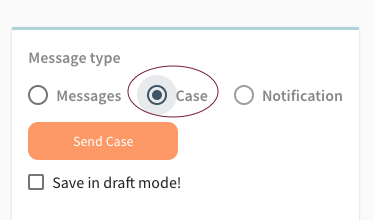
4. Fill in a Subject and a body and describe what the learner shall be assigned to do for the teacher to review.

You can save a Case in Draft Mode for using it later.
Example of Case:
"Write an essay of 400 words about the Shakespeare work that you found to be the most interesting".
"Explain the photosynthesis process with your own words".
"Go and take pictures of 10 different trees".
All these case is an examples of something the teacher, technically administrator will review to approve or dismiss as incomplete. A case involves an interaction and synchrony communication between the teacher role and the student.
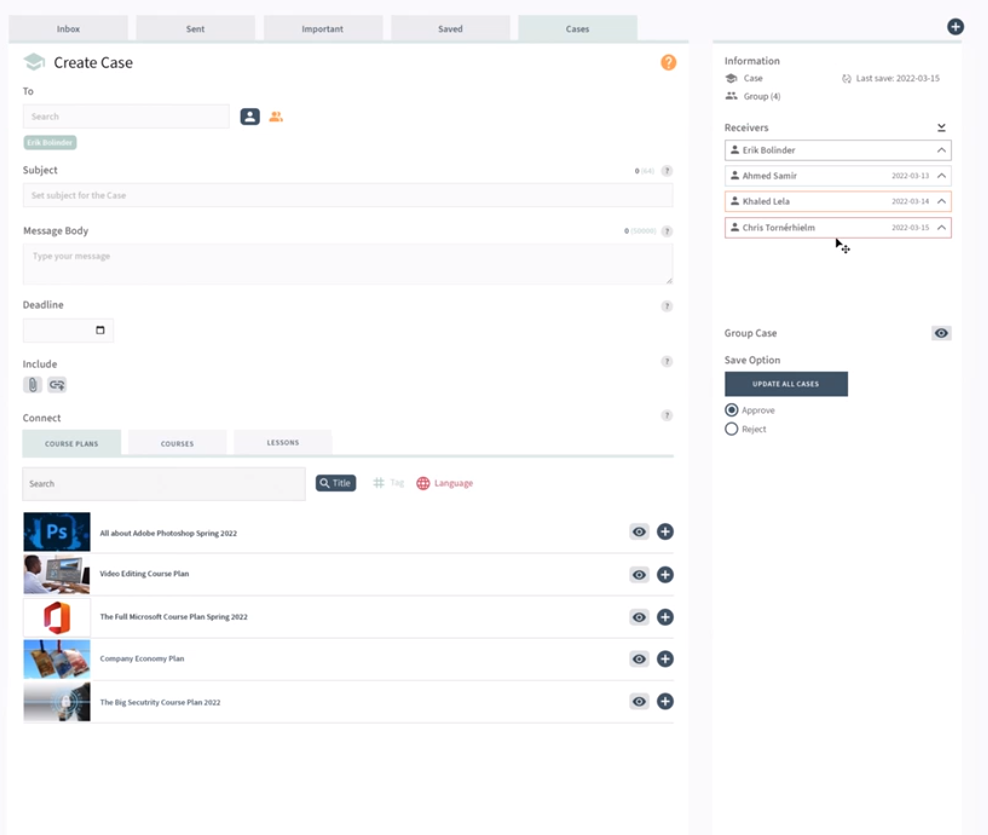
The Case has a headline and a body/description, whatever the task. In the Content section under Case, it can also have an image, goal, and key points.

5. Chose who to send the Case. A single learner in KLMS, multiple learners, or to a group.
5a. If you send to a group as an admin or teacher: You will create a group chat channel and an individual chat with each recipient (AUs). In the individual case chat, you can discuss and see the progress of the student's effort to comply with the Case. IN the group chat, anyone can have a question, or the teacher can explain more in detail about the Case.
6. Set a deadline for the Case. A case can have a deadline or it can be open without an end date in mind.
The Case in itself, without deadline and recipients, is saved in the admin section as Case content. These cases can be added to a course or a course plan. (multiple courses).
If you send a case from the messageboard without saving the draft, it's automatically saved in the Case section under Admin/ Content. And can be reused and copied for alteration for later when the next class is arriving next semester.
Case outline and outcome
When a Case is sent, the learner is assigned to complete the case and the tasks involved and report when it's done.
Admin can send the same case to a multiple groups of learners and each one will be approved in the second column of the case.

A case can be technically Open, Started, Done, Approved, Dismissed, Renewed, or Closed. Depending on the actions of the learner and the approval from the Teacher.
A teacher can reject a submitted case or approve it.
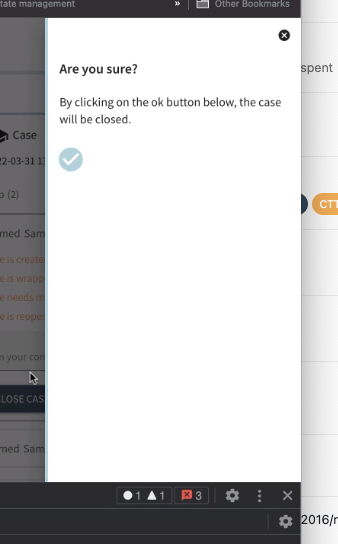
A teacher can send a Case to many and handle the Case in the second column in the window for each individual in the class or group of KLMS learners that are assigned to this Case.
Case as part of Course
In the Admin view: Case is a part that can be inside the Courses. Just like the administrator collects Material, Tests, and Survey; the admin can have many Cases as templates to later assign to students or employees.