Record your Course Material directly in the KLMS with one clic
One of the advantages of learning via the computer is that you can record a video that records your movements and sounds with a screen recording. This can be done externally in other programs, but it can be done quickly without software in Klick Data's learning platform KLMS.
A. You can record video (if you have a camera installed on the computer, which the vast majority have today with just yourself explaining or narrating with video (and audio)
B. You can record what you do on the screen with sound
C. You can only record an audio recording without video or screen
D. Or you can record a screen recording with yourself as the instructor so that the recipients, who will go through your course or your presentation, can see you with your body movements and facial expressions and make it more personal.
All of this is nothing new when it comes to learning platforms or presentations. The simple thing about Klick Data is that you can get started inside the learning platform by pressing a button.
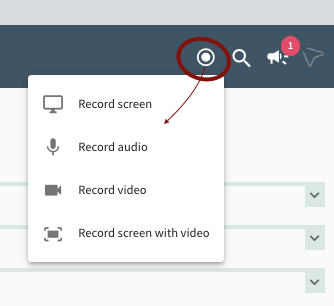
Once logged into Klick Data's learning platform, click on the round button at the top right of the screen.
As an admin, you have the option of recording. But also as a user in standard mode. An academy administrator can remove this option.
You choose one of the four options described above. (Video, Screen, Sound, or Video+Screen) .
Then you select which part of the screen or which window you want to record. You can select a tab, full screen, or a specific window.


If you click on Use as Material, you will go directly into Create Material.

If you save it as Material, you end up in the Create Material module. Here you can change the title and "paint" the course material with details such as an explanation, content, time stamps, tags, etc., just like in any material. If you want to save it quickly to edit later, save it as a draft or publish it publicly in your academy.